Export as Micromine Data file
Use the Tools | Export | MICROMINE format menu option to export your data as a Micromine data file.
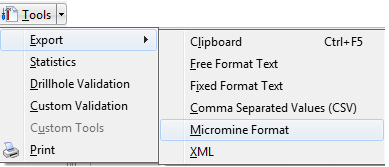
The following dialog is displayed:
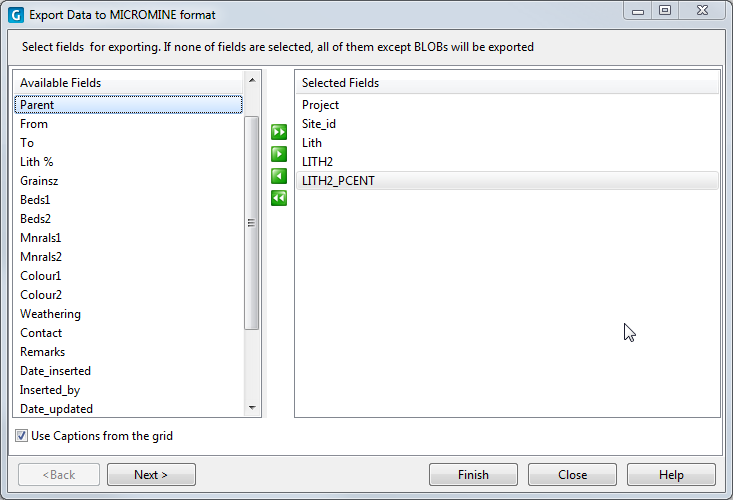
Select fields for export
Select and unselect the fields you want to export from the Available fields pane. If necessary, you can use the Select all and Clear all buttons prior to making individual field selections.
If you use the Select All button, you cannot change the order of the fields that have been moved to the selected Fields pane. To specify a new order, use the Select Current button to move each field in the order you want to export them.
|
|
Select All |
|
|
Select Current |
|
|
Clear Current |
|
|
Clear All |


Use captions from the grid
By default, true field names are displayed in the left-hand pane. If you select this option, the display names in the data view are used instead.
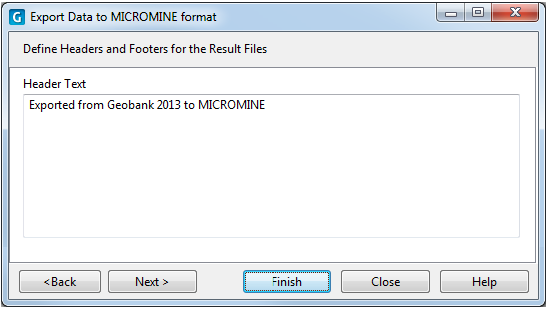
Headers and Footers
When you export to a Micromine Data file, you can add information to the header of the file.
Record Processing
Specify which records are to be exported, some or all of them, starting from the start of the file (the default) or starting from the current record.
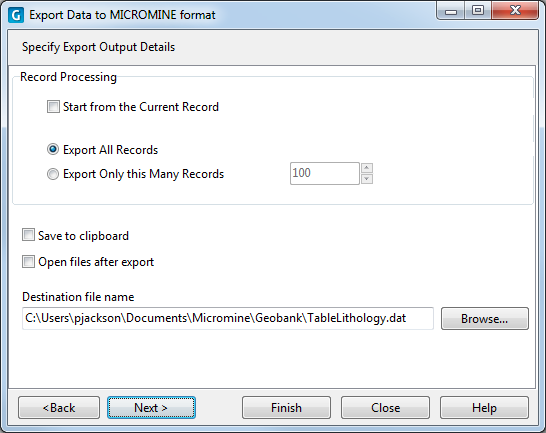
To open the output file once the export process is complete, select the Open files after export check box.
Click Next. A status screen is shown. Click Yes to continue.

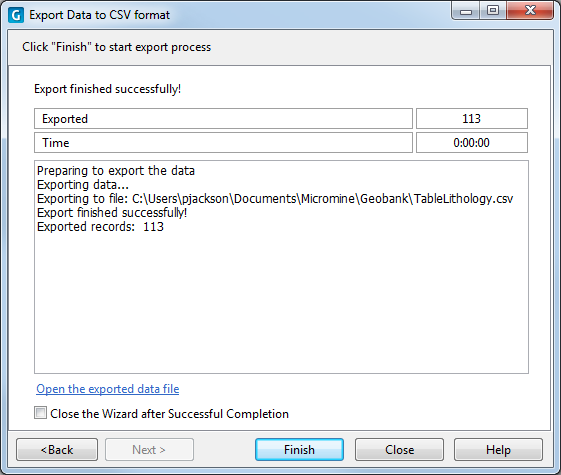
Click Finish to begin the export process.
The Export wizard remains open until you click Close.
Alternatively you can select the Close this Wizard after Successful Completion check box option to close the wizard automatically once the export is complete.
You also have the option to open the exported data file.
 See Also