Display
Use the Display tab of the Blasthole Design form to customise the display of the blasthole collars, traces and rows.
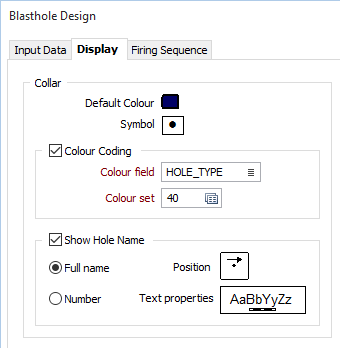
Collar
Double click (F3) to select the colour which will be used to draw the collars when a colour set is not defined, or when the value in the colour field is not mapped in the colour set.
Double-click the Point symbol prompt to choose a symbol. You can source symbols from any TrueType or OpenType font.
Colour Coding
Select this option if you want to colour code each blasthole collar based on the values in a colour field.
Select the field in the input file that contains values which will determine the colour to be used to depict the blasthole collars. The colour set, that is associated with this field, maps colours to text strings or numeric ranges. For each record in the file, the display colour is determined by the value in this field.
Double click (F3) to select the colour set that will be used to control the display colour. The colour set maps colours to text strings or numeric ranges. This determines the colour for each value in the colour field. Right click (F4) to create or edit a colour set.
Show hole name
Select this check box to show hole names in the display.
Position
Double-click on the Position icon to specify how the labels will be positioned in relation to each collar. Annotation can be located at one of twelve positions around the point. Double-click (F3) to open the Text Position dialog.
Text Properties
Double-click on the Text Properties Preview box to select a font and set text properties for the labels.
Display Rows
Select this option to display the blasthole rows in a nominated colour and line type.
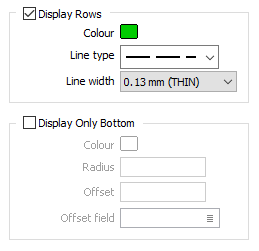
Colour
Double click (F3) to choose the colour that will be used to draw the trace.
Line type
Select a line type. A preview of each line type is shown in the drop-down list. A variety of solid, dotted, and dashed line styles are available for selection.
Display Only Bottom
The position of new blasthole collars should not coincide with the position of the toes of the holes in the blasting block above. It is therefore sometimes necessary to be able to see the toes of the holes in the block that lie above the current block.
When you select the Display Only Bottom check box, the blastholes in the Input file are loaded as an Edit Locked layer and only the toes of the holes are visible. In addition to setting the display colour and the radius of the toes, an offset can also be set to allow for overdrilling, using either a specified offset value or the values in a nominated field.
Display Trace
Select this check box to display each blasthole trace in a nominated colour, line type and thickness.
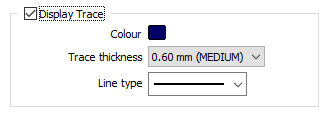
Colour
Double click (F3) to choose the colour that will be used to draw the trace.
Line type
Select a line type. A preview of each line type is shown in the drop-down list. A variety of solid, dotted, and dashed line styles are available for selection.
Line width
Select a (THIN, MEDIUM, THICK, or custom) line width from the drop-down list. An extensive selection of custom widths (in millimetres) are available for selection.