Lines
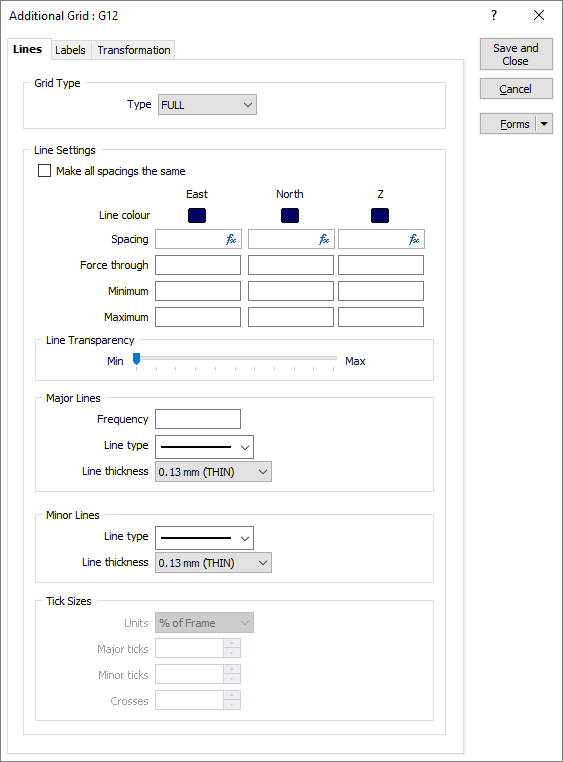
Set the type of the grid and set line settings on the Lines tab of the Additional Grid form.
Grid Type
Select the type of grid to display:
- FULL draws lines from one side of the paper to the other.
- CROSSES draws tic marks around the grid border and crosses wherever grid lines intersect.
- TICKS draws tick marks around the grid border.
Line Settings
Enter a Spacing for the lines drawn along the East, North and Z axes. Dynamic field expressions are supported. See: Expression Editor
Alternatively, select the Make all spacings the same check box to apply a single spacing to all axes of the grid. Enter the spacing in the East spacing box. The North and Z spacing boxes are disabled when this check box is selected.
Double-click on the Colour icons to select a colour for the labels along each axis.
Sometimes it is necessary to force the grid lines through a particular coordinate.
For example, a grid with a 20m spacing will, by default, be running through 100m, 120m and 140m. You may require the grid to pass through 90m, 110m and 130m. In this case, enter one of these values and the grid lines will be adjusted automatically.
Minimum and Maximum Extents
Optionally specify the minimum and maximum extents of the grid.
Major Lines
A grid is typically made up of a series of Major and Minor lines which can be differentiated by their line style and thickness.
- Enter the Frequency with which major lines will be drawn along each axis. For example if you enter 5, every fifth line will be a major line, while all other lines will be minor.
- Select a Line style from the drop-down list of (SOLID, DASH, DOT, DASH DOT, DASH 2 DOTS) line style options.
- Select a Line thickness from the drop-down list of (THIN, MEDIUM, THICK) line thickness options.
Minor Lines
- Select a Line type from the drop-down list of (SOLID, DASH, DOT, DASH DOT, DASH 2 DOTS) line style options.
- Enter a Line thickness value (in points).
Note: When a spin control has focus, you can use the mouse wheel to increase or decrease the displayed value.
Tick Sizes
If you have chosen TICKS as the grid type, set the Units of measurement and the size of the Major ticks and Minor ticks.
If you have chosen CROSSES as the grid type, set the size of the Crosses.