Customise
Select Tools | Options | Customise to customise application toolbars, commands, keyboard shortcuts and options.
Toolbars
To create your own toolbar, or select which toolbars are active in the application, select Window | Toolbars | Customise. You can also right-click in a vacant section of the toolbar area and select Customise from the right-click menu.
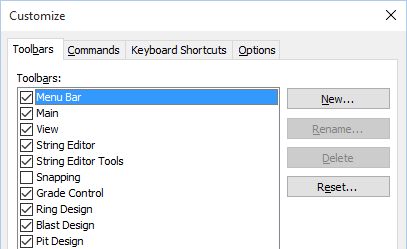
When you click the New button and specify a toolbar name, a new toolbar is initialised and displayed in the application window. You can add tools to the new toolbar using the Commands tab (see below). Alternatively, you can move a tool from one toolbar to another by dragging and dropping it with the mouse. To copy a tool from one toolbar to another, hold down the CTRL key as you drag and drop it with the mouse.
- Rename a selected (highlighted) toolbar.
- Delete the selected toolbar.
- Restore the application's default settings for the selected toolbar by clicking the Reset button.
Hiding toolbar buttons
The tools provided on some toolbars may be extensive. To limit the number of tools displayed to those most frequently used, you can make use of the Add or Remove Buttons feature to customize your toolbars.
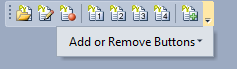
Any tools that are not currently shown on the toolbar - either because the width of the application window is too narrow to display them, or because they have been hidden - can be selected by clicking the drop-down arrow at the far right of the toolbar. Those tools which can not be displayed due to the insufficient width of the application window, are immediately available for selection.
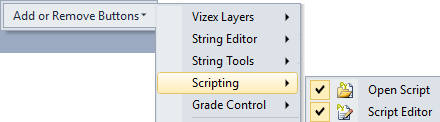
To add buttons which have previously been hidden, or to hide existing
buttons, click on the Add or Remove Buttons
menu option. A  drop-down list is provided which shows all of the available
tools for each toolbar on the same row. A selection check box is displayed to the left of
each tool icon.
drop-down list is provided which shows all of the available
tools for each toolbar on the same row. A selection check box is displayed to the left of
each tool icon.
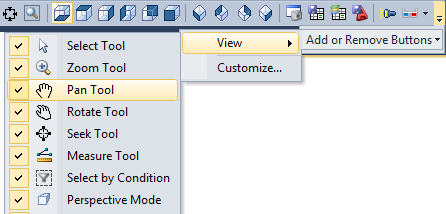
To add a button which has been hidden, select the appropriate check box. To hide a button from the toolbar, deselect the appropriate check box.
To reset the toolbar so that it contains only those tools that were provided as the default set by the application, select the Reset option at the foot of the Add Remove Buttons menu. CAUTION: Any tools that were added to the toolbar using the Customise menu option, will be lost.