Fence Image from String
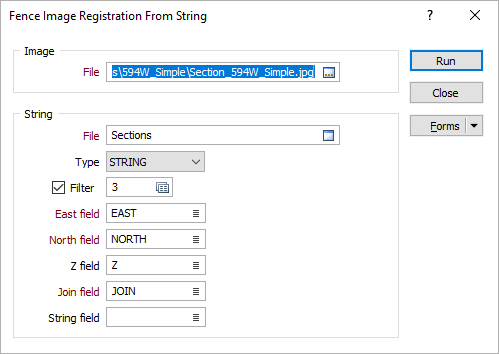
Select File | Image | Fence Image from String to select an image to be draped onto multiple, adjacent vertical planes, as defined by the neighbouring vertices of a string (or strings).
Image
Double-click (F3 or click on the Select icon) to select the name of the image you want to register.
String
File
Double-click (F3 or click on the Select icon) to select the name of the file you want to drape the image onto. This is typically a String file. If required, define a filter to selectively process the records.
East and North and Z fields
Double-click to specify the names of the fields in which the Easting, Northing and Z coordinates are stored.
Join field
In forms that require polylines as an input, the values in this field define whether the data points in the input file should be joined by a line. If successive records have the same value in this field, a line will join the points. If two-factor topology is required, the values in a String field may also be used to segment the lines.
String field
In most forms, the String field is an optional generic attribute used to store a secondary input such as a code. Traditionally, this field has also been used with the Join field to define whether data points should be joined by a line, or strung, hence the name.
Run
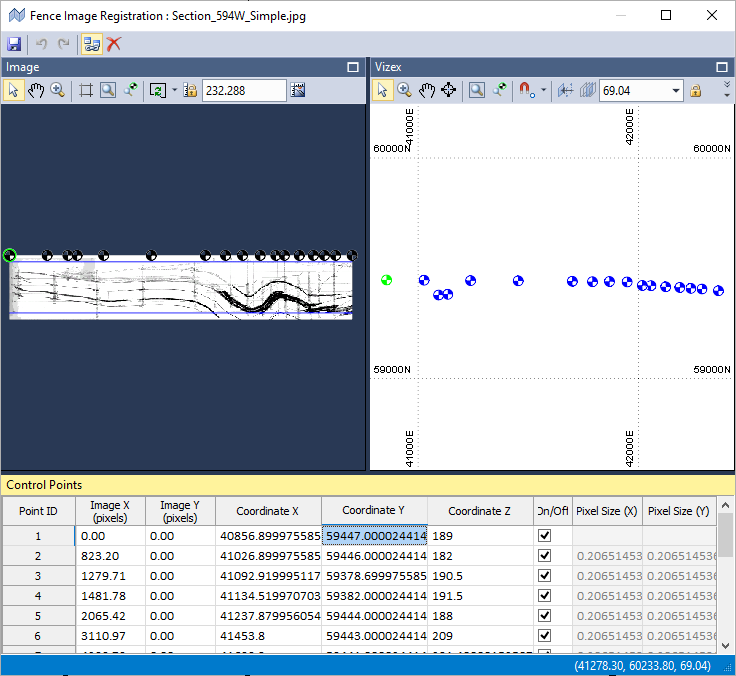
Click Run. The Fence Image Registration window is opened with defined control points based upon the vertices of the string(s) you have selected.
Forms
Click the Forms button to select and open a saved form set, or if a form set has been loaded, save the current form set.
By design the Forms button is not available for loaded Vizex layers (i.e. when opening the form set properties of a layer in the Display Pane). In Vizex, the Forms button is only available for new forms opened via the Display | Vizex menu (or by double-clicking on a form type node in the Vizex Forms Pane).
Save and Save As
Click the Save button to save the changes you have made to the form set. Click Save As to save your changes as a new form set. Save As will default to the first available form set number.
Reset
Click Clear to clear the form of all values and reset the form to its default state. In the case of tabbed forms, set the first tab as the active tab.
Undo and Redo
Click Undo (CTRL + Z) to undo recent changes in the form. After an Undo, click Redo (CTRL + Y) to restore the last change that was undone.
Collapse
Collapse (roll-up) the form to preview the results of an operation in Vizex, or obtain input values from Vizex, the Property Window, the File Editor, or the Plot Editor.
Run
Click Run to open the string(s) you have selected in the Fence Image Registration window.