Coordinate Grid Toolbar
Use the options provided on the View | Coordinate Grids menu (and on the Coordinate Grid toolbar) to toggle the display of orthogonal and non-orthogonal grids in 3D.
The Coordinate Grid toolbar provides a quick way to switch between grids on-the-fly without having to open a form.
To quickly open or close a toolbar, right-click in an empty space below the menu bar, then select a toolbar from the right-click menu. A check box is shown alongside those toolbars that are currently open.
To open the Grid Settings form, select the View | Coordinate Grids | Grid Settings option or click the Grid Settings button (See below).
Grid extents and line spacings can be set to be automatic or be user-defined. Additional label options are provided, and the transparency of major lines, minor lines, and underlay planes can be easily adjusted.

|
Click the Auto-Working Plane button to toggle the Auto-Working Plane on and off. See: Coordinate Grid Settings |

|
Click the Toggle 3D Grid button to set the working plane of the grid as 3D. You will generally select this plane when manipulating the display in 3D. |

|
Click the Toggle XY Plane button to set the working plane of the grid as XY. You will generally select this plane when working in Plan. |

|
Click the Toggle YZ Plane button to set the working plane of the grid as YZ. You will generally select this plane when your view is Looking North or Looking South. |

|
Click the Toggle XZ Plane button to set the working plane of the grid as XZ. You will generally select this plane when your view is Looking East or Looking West. |

|
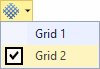
Click the Toggle Additional Grids button to enable or disable additional grids as a group. See: Coordinate Grid Settings. To enable or disable grids individually use the drop-down tool menu: |
|
|

|
Click the Grid Settings button to open the Coordinate Grid Settings form. This form has three tabs, each with settings that control: |
|
|
|

|
Click the Head Up Display button to toggle the display of information about the orientation of the current plane on and off.To set the properties of the Head Up Display, select View | Coordinate Grids | Head Up Display | Settings. See: Head Up Display Settings |

|
Click the Toggle Scale Bar button to toggle the display of the grid scale bar on and off. To set the properties of the scale bar select View | Coordinate Grids | Grid Settings. See: Scale Bar Settings |
 See Also