Activate a Licence Online
Activating a New Licence
If you are installing Geobank 2020 for the first time, you will need to activate the licence using the activation code provided to you by MICROMINE Licensing.
When you start Geobank after installation, the following screen appears. Select Activate New Licence Online:
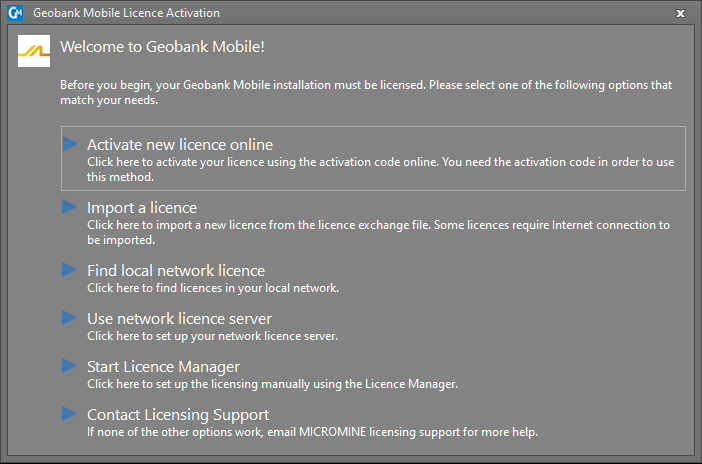
Follow the Licence Activation steps described below. Your computer must remain online during the activation process.
Activating an Existing or Additional Licence
If you have received a licence upgrade, or have been issued with an additional licence, or are the recipient of a licence transfer, you will need to activate that licence, using the activation code provided to you.
Select File | Licensing | Activate Licence Online:
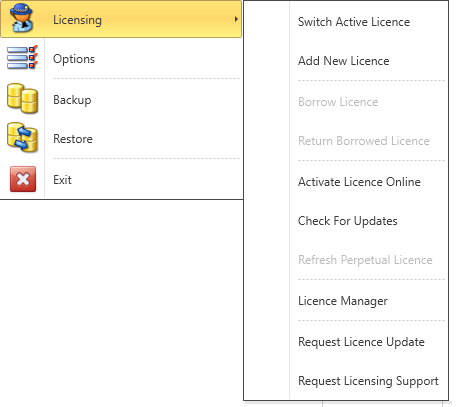
Follow the Licence Activation steps described below. Your computer must remain online during the activation process.
Licence Activation
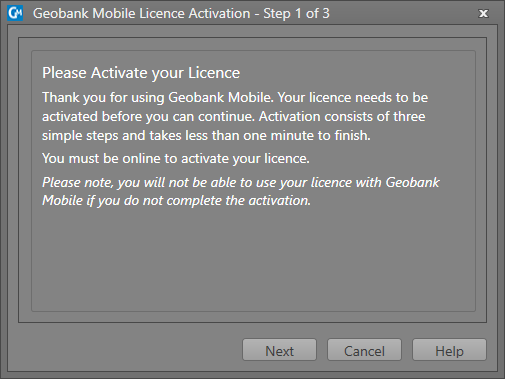
- Click Next to begin the activation process:
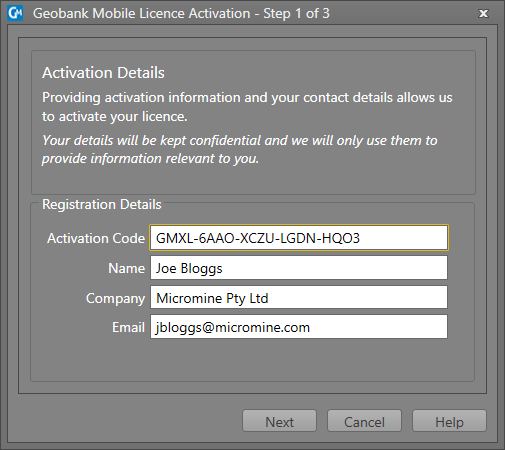
- Enter the activation code provided to you by MICROMINE Licensing or the Transfer Licence Wizard:
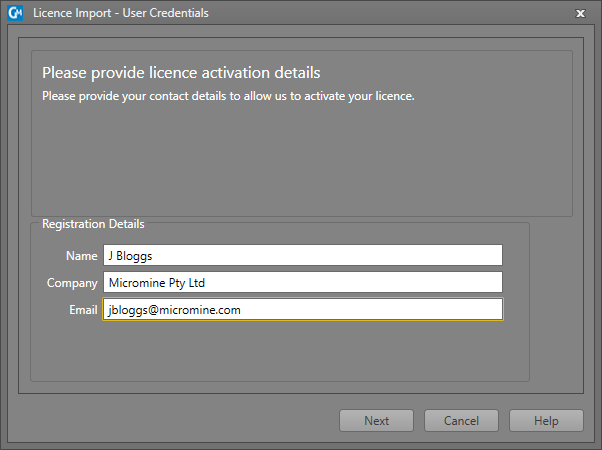
- Enter your contact details.
- Please wait while Geobank contacts Licensing Services to obtain activation data.
- Click Next to start the licence activation:
- If an error occurs please take a screenshot, or write down the error code and the message, before contacting Licensing Support.
- Click Finished to complete the activation process.