Update a network licence
To update your Geobank Mobile Network licence, please do the following:
- On your local machine, start Geobank Mobile.
- Select File | Licensing | Licence Manager.
- Select the Network Licences tab.
- Click on the Discover button at the bottom of the page to discover your network server.

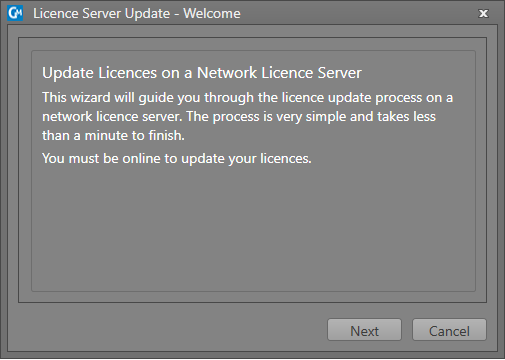
- Click the Update Licenses button and then click Next.
- Select or fill out the IP address from the drop-down menu and click Next.
- Fill out the online form including the sent activation code (if required).
- To set up your licence configuration, see: Licence Configurations.
If the server is undetectable, you can click on the Add button to add a server address to the list of network servers.
Type in 6200@(IP address).
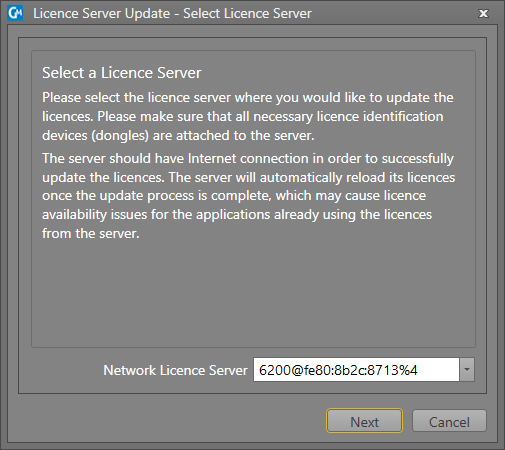
Note: The server should have an Internet connection in order to successfully activate or update a licence. The server will automatically reload its licences once the activation/update process is complete. This may cause licence availability issues for applications already using their licences from the server.
If you are having trouble installing and activating your Geobank Mobile software, or require further assistance, please contact support at: support@micromine.com
Please quote your Licence number in any correspondence.
If you have any queries, please do not hesitate to contact us.