Configure the User Interface
A well-arranged layout can make your data entry faster and smoother.
- Freeze the depth fields on the left-hand side of the screen so that you don’t lose your place when logging. You could also freeze any other panes that you find yourself often referring to (e.g. Collar EOH Depth)
- Hide unnecessary fields.
- Arrange columns so they are in the order in which you log (e.g. when logging AC you prefer to log colour first, then lithcodes, minerals, and finally comments). If the columns are arranged in this order, you will be able to tab forward through them, rather than constantly having to move your cursor back and forth.
- Use full screen mode to make the most of your screen real estate.
- Drag tables where you want them.
- Pin xParams to the bottom of the screen.
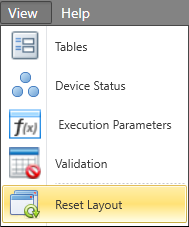
- Lock the user interface, so that it cannot be accidentally rearranged. If the layout is accidentally rearranged, you can restore it by clicking on View | Reset Layout:

(For example; Collar in the top pane, Lith & Sampling tiled in the bottom pane)