Load a blasthole design
Select Mining | Blasthole Design | Load Blasthole Design (or Display | Blasthole Design) to create or load an existing Blasthole design in Vizex.
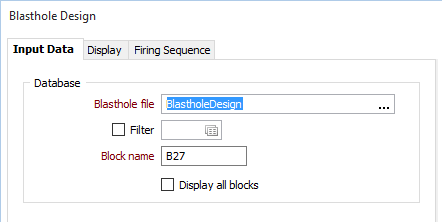
Database
A Blasthole Database (BHDB) file references the collar and (optionally) the survey data needed to generate a blast pattern.
Double-click (F3) to select from a list of Blasthole databases in the current project. Alternatively, you can right click and choose the Select option from the right-click menu. You can also Edit the properties of an existing database or enter the name of a New database (and Block name).
Select the Filter check box if you want to apply a filter to the database. Enter a filter number in the adjacent response. Double click (F3) to see a list of existing filters. Right click (F4) to open the dialog box where you can create a new filter.
Block name
Double-click (or click on the Select icon) to select a block name. A block is a group of holes you want to blast in sequence as part of a blast pattern. The selection of a block allows you to manage and, if necessary, vary the design process for each block.
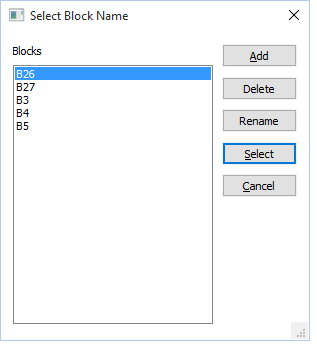
When you double-click in the Block name prompt, a list of the blocks in the database is displayed:
- Select a block and click Select to select it.
- Click the Add button to add a new block.
- Select a block and click Delete to delete it.
- Select a block and click Rename to rename it.
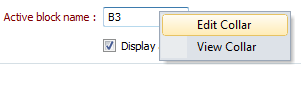
You can also right-click in the Block name prompt and select an option to View or Edit the collars in the Collar file.
When you select a block, click the Apply button to preview the block you have selected.
Display all blocks
Select this check box to display all of the blocks in the design. Note however, that you can only edit the block you have selected in the Block name prompt.
Forms
Click the Forms button to select and open a saved form set, or if a form set has been loaded, save the current form set.
By design the Forms button is not available for loaded Vizex layers (i.e. when opening the form set properties of a layer in the Display Pane). In Vizex, the Forms button is only available for new forms opened via the Display | Vizex menu (or by double-clicking on a form type node in the Vizex Forms Pane).
Save
Click the Save button to save the changes you have made to the form set.
Save As
Click Save As to save your changes as a new form set. Save As will default to the first available form set number.
Reset
Click Clear to clear the form of all values and reset the form to its default state. In the case of tabbed forms, set the first tab as the active tab.
Collapse
Collapse (roll-up) the form to preview the results of an operation in Vizex, or obtain input values from Vizex, the Property Window, the File Editor, or the Plot Editor.