Theme Settings
Themes define the form sets to be used for the Background, Coordinate Grid, Scalebar and Axis Orientation, as well as default selection colours. You can quickly switch between different themes to suit your current workflow.
Select View | Change Vizex Theme | Theme Settings, or use the tool menu on the View toolbar, to open the Vizex Theme Settings form:
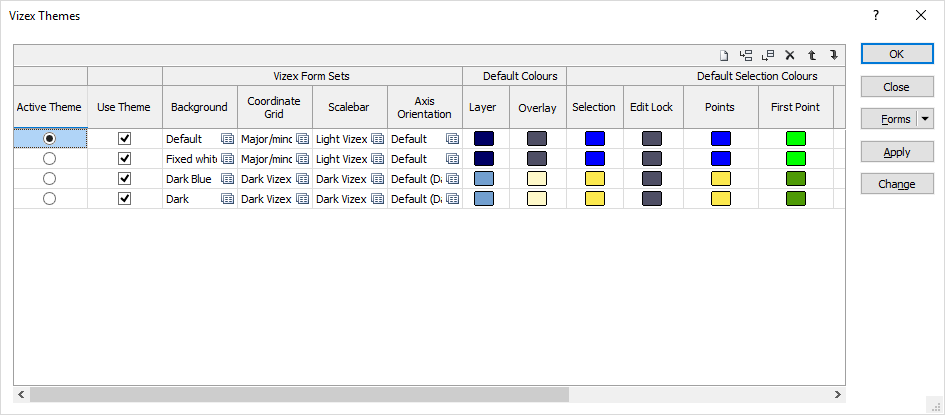
Each row of the grid defines a theme. A theme comprises a collection of Vizex form sets and default colours. When you apply a theme:
- the form sets of the theme will overwrite the Vizex form set defaults
- the colours you have set for the theme will overwrite the colour defaults in Tools | Options | Vizex
You can use the buttons on the grid list toolbar (or use the right-click menu) to Manage the rows in the list.
Active Theme
Indicates which theme is currently the active theme, and allows a different theme to be selected as the active theme. A theme must be enabled before it can be applied. See Use Theme below.
Use Theme
When you select a theme as the active theme, or click Change to cycle through and apply each theme in turn, themes will be ignored unless the Use Theme check box has been selected to enable them.
Vizex Form Sets
Background
Choose how the background of the Vizex scene will be rendered in the current project. These theme settings will overwrite the default form sets in View | Vizex Background Options.
See: Background Options
Coordinate Grid
Define the spacing and the extents of the coordinate grids you have made active. These theme settings will overwrite the default form sets in View | Coordinate Grids | Grid Settings.
Scalebar
Choose to display a scale bar and customise its appearance. These theme settings will overwrite the default form sets in View | Coordinate Grids | Scale Bar Settings.
See: Scale Bar Settings
Axis Orientation
Choose to display an orientation axis and set its location and appearance. These theme settings will overwrite the default form sets in View | Coordinate Grids | Orientation Axis Settings.
See: Orientation Axis Settings
Default Colours
New layer
Double-click the Colour icon to set the default colour for the objects of a new layer. When a theme is applied, the default colour on the Layer Defaults tab of the Tools | Options | Vizex form will be changed accordingly.
See: Layer Defaults
Selection
Double-click the Colour icons to set default (Selection, Edit Lock, Point, First Point, Last Point) colours. These theme settings will overwrite the default colours on the Selection tab of the Tools | Options | Vizex form.
See: Selection
Wireframe
Double-click the Colour icons to set default (Wireframe Construction and Highlight) colours. These theme settings will overwrite the default colours on the Wireframing tab of the Tools | Options | Vizex form.
See: Wireframing
Apply
Click Apply to apply changes without closing the form. If you have changed the Active Theme, the chosen theme is applied in Vizex.
Change
Click Change to cycle through the list of themes, simultaneously selecting and applying the next available theme as the active theme.
Themes will be ignored unless the Use Theme check box has been selected to enable them.
Forms
Click the Forms button to select and open a saved form set, or if a form set has been loaded, save the current form set.
By design the Forms button is not available for loaded Vizex layers (i.e. when opening the form set properties of a layer in the Display Pane).
In Vizex, the Forms button is only available for new forms opened via the Display | Vizex menu (or by double-clicking on a form type node in the Vizex Forms Pane).
Save
Click the Save button to save the changes you have made to the form set.
Save As
Click Save As to save your changes as a new form set. Save As will default to the first available form set number.
Reset
Click Clear to clear the form of all values and reset the form to its default state. In the case of tabbed forms, set the first tab as the active tab.
Collapse
Collapse (roll-up) the form to preview the results of an operation in Vizex, or obtain input values from Vizex, the Property Window, the File Editor, or the Plot Editor.