Customise Options
Use the Options tab of the Tools | Options | Customise dialog to specify how your personalised menus and toolbars will be displayed.
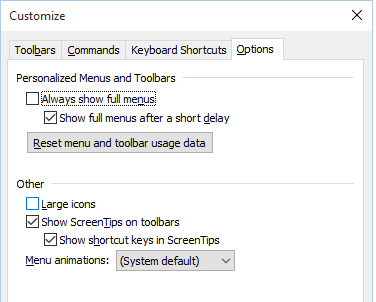
Personalised Menus and Toolbars
Always show full menus
The application continually records the usage of menu commands and toolbar options in order to maintain a log of recent and most frequently used commands.
Show full menus after a short delay
To be able to access the most recent or frequently used commands is a useful feature if your usage is limited to largely the same menu commands and toolbar options, but it can be disconcerting to those whose usage is less predictable.
To get the best of both worlds, select the Show full menus after a short delay option to limit the menus initially to the most recent commands used. After a few moments, the full menu list will be displayed.
Reset menu and toolbar usage data
Clicking this button will delete the record of the menu commands and the toolbar options you have used during the current and previous sessions. If you select this option, the application will restore the default set of menu commands and initialise the usage register.
Other
The Other options allow you to personalise the appearance and the behaviour of the toolbars by selecting large icons and choosing whether or not to display shortcut keys and screen tips.
Large icons
Select this option to display large icons alongside the menu commands and on toolbars.
Show Screen Tips on toolbars
By default ScreenTips or ToolTips appears when you hover the mouse over the tools on a toolbar. When this option is enabled you can also choose to show shortcut keys in ScreenTips.
Menu animations
While it is possible to choose between several (Random, Unfold, Slide and Fade) animation effects that are used when selecting and switching between menu options, it is recommended that you use the System default setting.