Import a Licence
To import a node-locked local licence, that licence must first be transferred. See: Transfer a Licence
When a licence is transferred, an exchange file can be copied from the computer of the person who is sharing the licence. You can then select and open that file on another computer as part of the Import process.
Importing a New Licence
If you have not yet activated a licence for Geobank Mobile and you are the recipient of a licence exchange file, the following screen will appear when you start the application. Select Import a licence:
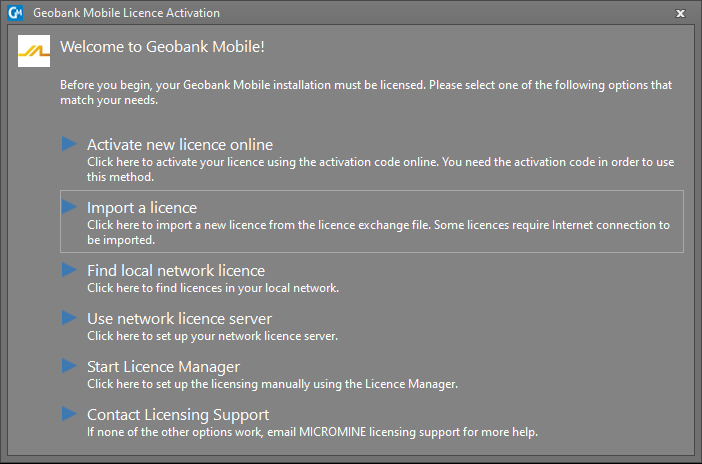
Follow the Import Wizard steps described below.
Importing an Additional Licence
If you are the recipient of a licence exchange file, and another licence is currently active, you can import that licence using the Licence Manager:
- Select File | Licensing | Licence Manager.
- On the Local Licences tab of the Licence Manager, click the Import button:
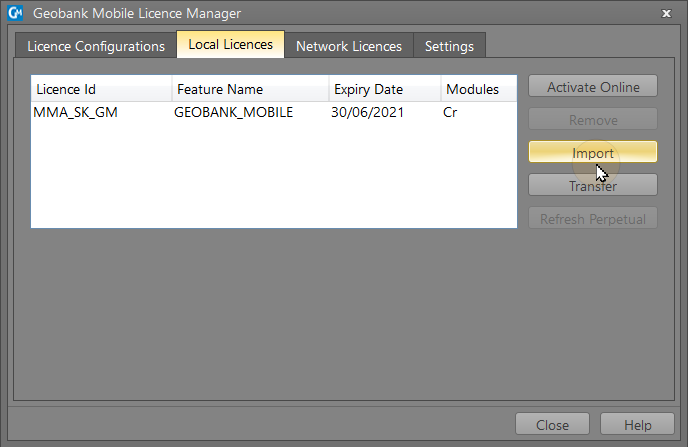
Follow the Import Wizard steps described below.
Import Wizard
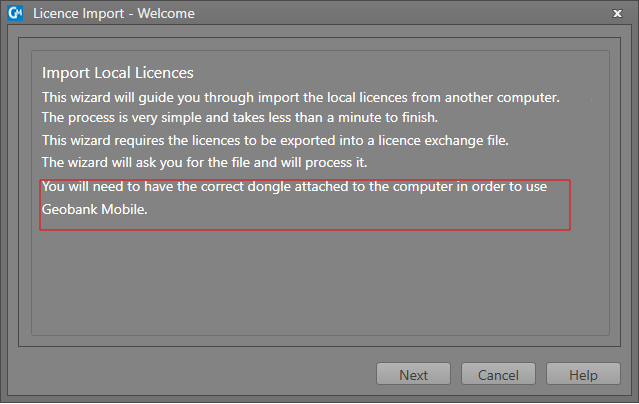
- The wizard will guide you through the process of importing a local licence to another computer.
- Click Next to continue:
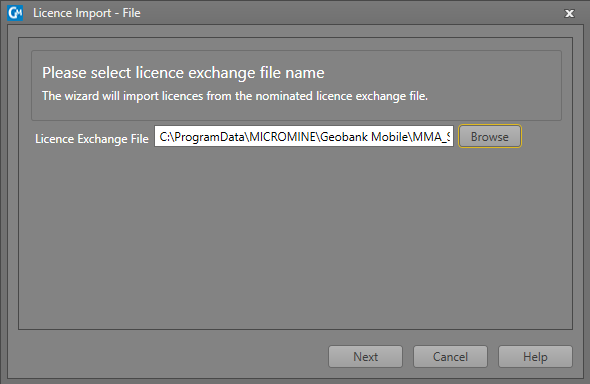
- Click Browse to navigate to the location of the Geobank Mobile Licence Exchange file (*,gblicexchange) you want to import. Click Next to continue:
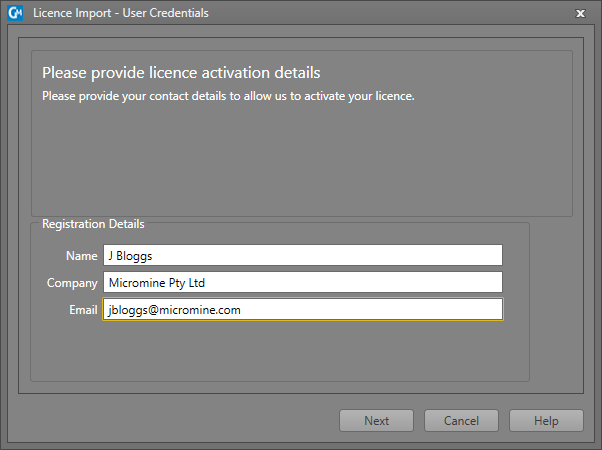
- Enter your registration details:
- Click Next to continue. If an error occurs please take a screenshot, or write down the error code and the message, before contacting Licensing Support.
- Click Finish to close the Import wizard.