Data Entry Tips
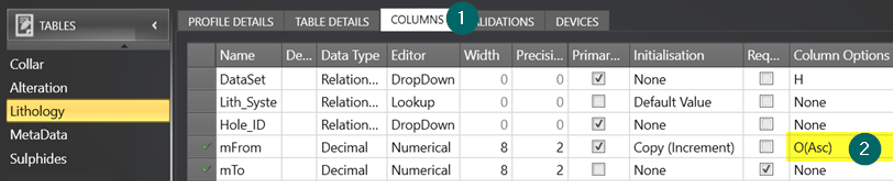
- Make sure your tables are Ordered By SiteID & mFrom. This is configured in the Profile Editor:
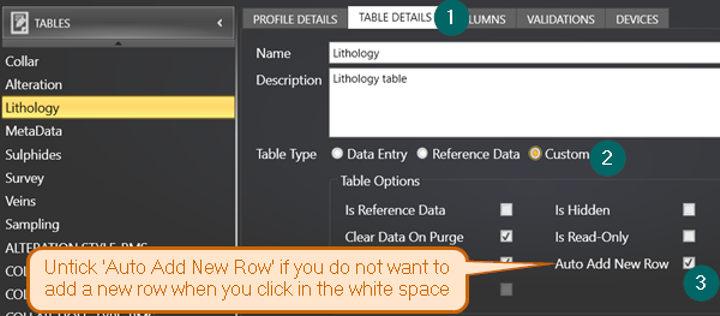
- By default, a new record is created whenever you click on the white space in the data entry area. If you do not want this to happen, you can deactivate it by going into the Profile Editor and then deselecting the Auto Add New Row option in the relevant table:


-
The software is designed for a team of loggers in the field to capture current data for drilling and sampling programs. As the collection for sets of data; such as each drillhole; is completed, the standard workflow should be used to handover the approved data and then purge it out of the current dataset. New planned drillholes and samples can be added on a regular basis so that the system is ready for these to be logged.
-
Geobank Mobile is typically used on field tablets or laptops with limited performance abilities. Normal performance of the software can be expected with 20-50 collars depending on the complexity of the downhole tables. As the number of collars in the current dataset increases, the system will run up against the performance constraints of your field machines and a decline in responsiveness and performance may be observed. It can reach impractical levels if the number of collars get into the hundreds.
-
Geobank Mobile is designed to work with a separate lookup table for each logging code category. It is possible to use a single multi-category table, but this has a significant impact on the performance of lookup selection and validation thus is not recommended.
-
For more details on the recommended processes for the regular hand-over of completed logging and acquisition of planned collars and sample see: Exporting Data .