Micromine comes bundled with a minimal version of Python which allows you to run basic Python scripts. The Python scripting language includes comprehensive mathematical tools and tools that allow you to create custom user interfaces. Third-party packages and libraries are available that provide geospatial, statistical, and graphing solutions.
To take advantage of these advanced features, you can install extra Python modules to increase the power and the flexibility of the scripting environment.
Note: Micromine Scripting is currently only compatible with Python version 3.5.x. (If you are running Micromine 64-bit, you will need to install the windows X86-64 MSI Installer.)
The complete Python installer for Windows can be found on the Python website. For more information about Micromine Scripting, click on the following link: http://extras.micromine.com.au/ProductMicromineService/PythonScripting.asp
The following code will print all the search paths that Python will use to locate the modules it needs (if you are using the Micromine Python environment, the path will be <MICROMINE_INSTALL_FOLDER>/python/lib):
print(sys.path)
Record a script
To record a script:
- Click the Record Script button on the Scripting toolbar:

Or select Scripting | Record Script:
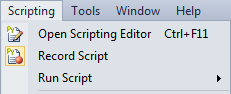
The Record button is shown as 'active'. From this point on, your actions in the application workspace are recorded. You can run functions, load form sets into Vizex, change the display orientation etc.
To stop recording a script:
- Click the Record Script button again on the Scripting toolbar:

Or select Scripting | Record Script again:
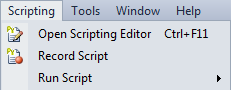
The Record button is shown as 'inactive' and recording has stopped.
- You will be prompted to save the recording as a Python (*.py) script.
Edit a script
When a script has been recorded you can edit the script in the Script Editor. You can also build a script from scratch by entering Python commands in the Editor.
To open the  Script Editor window:
- Click the Script Editor button on the Scripting toolbar:

Or select Scripting | Open Script Editor (CTRL + F11):
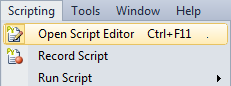
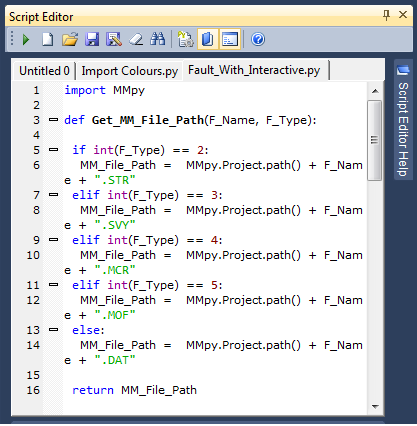
For more information about editor tools and options, refer to the Script Editor Toolbar topic.
Run a script
When you have Record Script a script you can run the script to perform the actions you have recorded. You can also build a script from scratch in the editor and then run it.
Run a script from the Editor
- Click the Script Editor button on the Scripting toolbar:
Or select Scripting | Open Script Editor (CTRL + F11):
- In the Editor window:

Click the Load button to load the Python (*.py) script you want to run. 
Click the Run button to run the script. Note: You can also use the Scripting toolbar and menu to run your favourite scripts and macros using toolbar and menu shortcuts or 'slots'...
Run a script from the Scripting toolbar or menu
- Click the Script Slots Manager button to create slots for a maximum of 12 scripts or macros. The rows in the grid correspond to the slots available on the Scripting | Run Script menu.
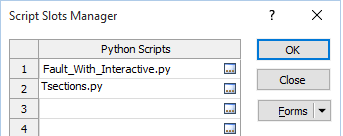
- To create a script or macro shortcut, double-click in a row of the grid and navigate to the name of the Python script (*.py) or Macro (*.MCR) you want to be able to run from the Scripting toolbar or menu.
- Open the Scripting toolbar drop-down menu and select Add or Remove Buttons | Customise.
- On the Commands tab of the Customise dialog, select the Scripting category.
- Use the mouse to click and drag the Run Script command onto the toolbar.
- Open the Run Script drop-down menu and use the mouse to select a Slot and drag and drop it onto the Scripting toolbar.
- After adding additional slots, you can then right-click on the Run Script button and select Delete to remove it from the toolbar.
A maximum of 12 script shortcuts or slots can be setup in the Script Slots Manager (see below). By default, 1 to 4 slots are available on the toolbar, but you can customise the toolbar to add more:
- Select a slot on the Scripting toolbar to quickly run a script (or a macro) with a single click of the mouse:
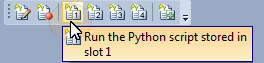
- Alternatively, select a slot on the Scripting | Run Script menu. All 12 slots are available for selection.